Access your phone's notifications, calls, apps, photos, and messages directly on your PC.
You love your phone, and so does your PC. Get instant access to everything you love about your phone, right from your computer. To begin, install the Link to Windows app on your Android phone and connect it with Phone Link on your Windows PC.
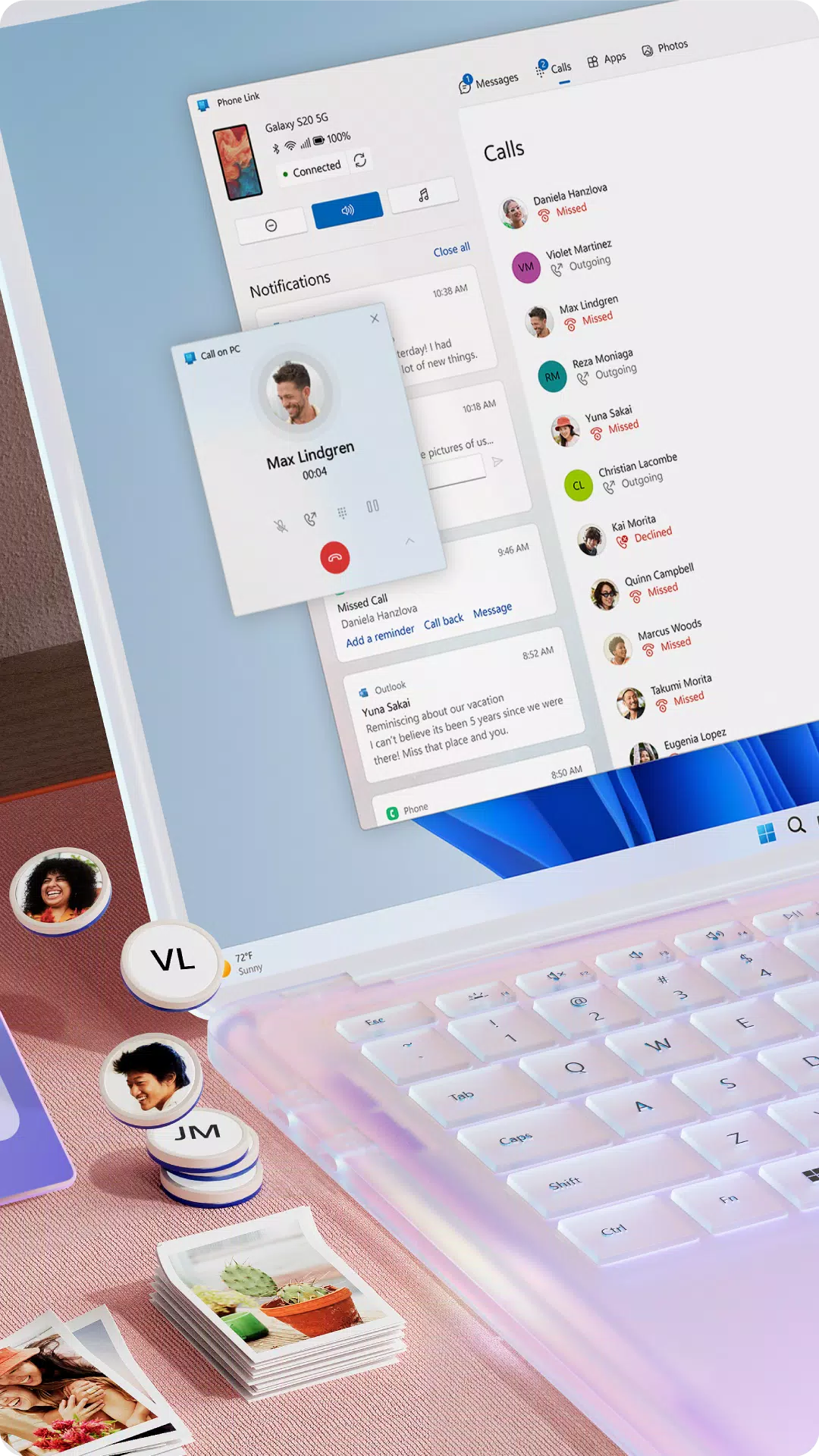
Link your Android phone and PC to view and reply to text messages, make and receive calls*, see your notifications, and do much more.
Forget about emailing photos to yourself. Seamlessly share your favorite images between your phone and PC. Copy, edit, and even drag & drop photos without ever needing to touch your phone.
Phone Link features:
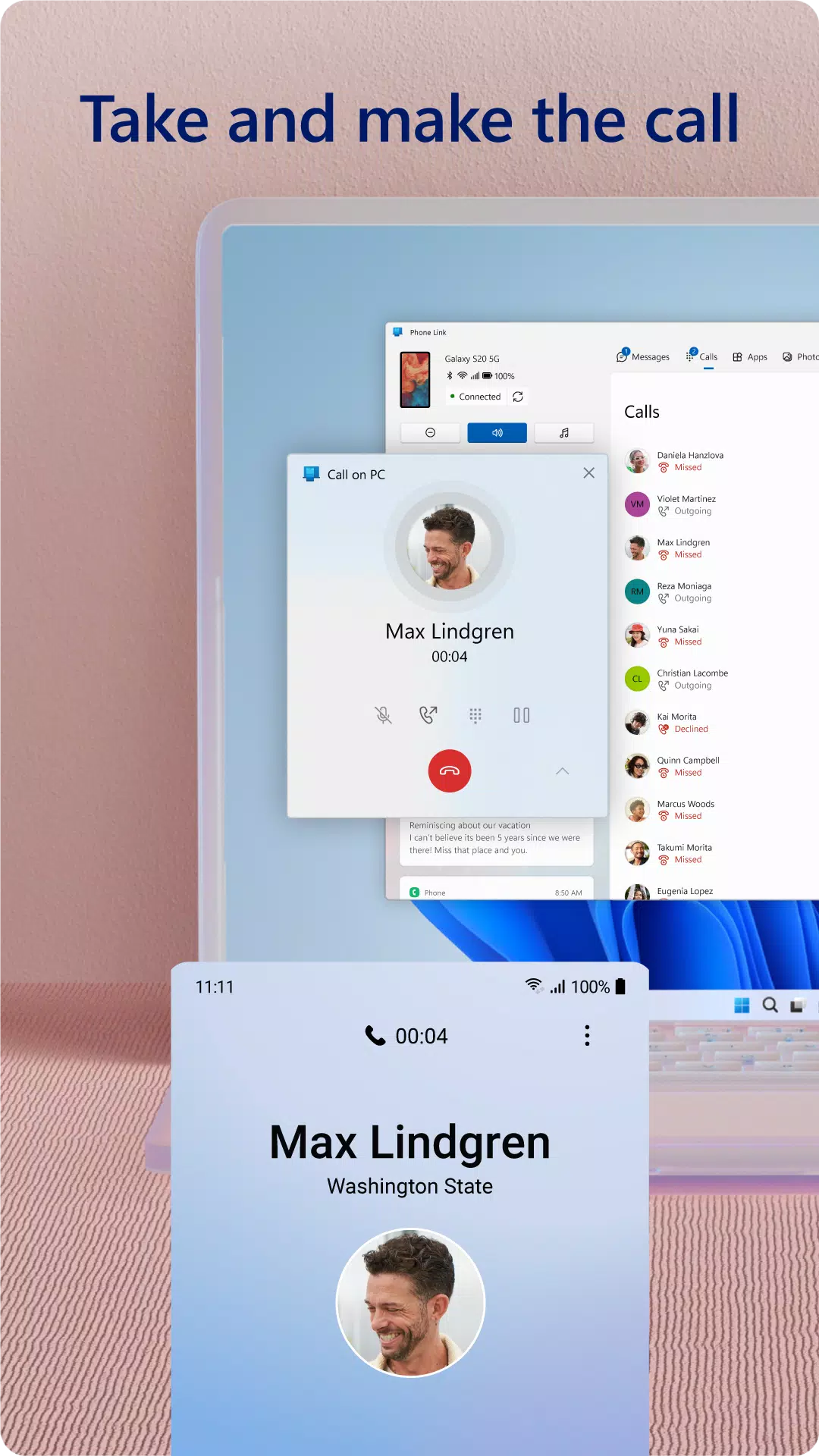
• Make and receive calls from your PC*
• Manage your Android phone's notifications on your PC
• Access your favorite mobile apps** on your PC
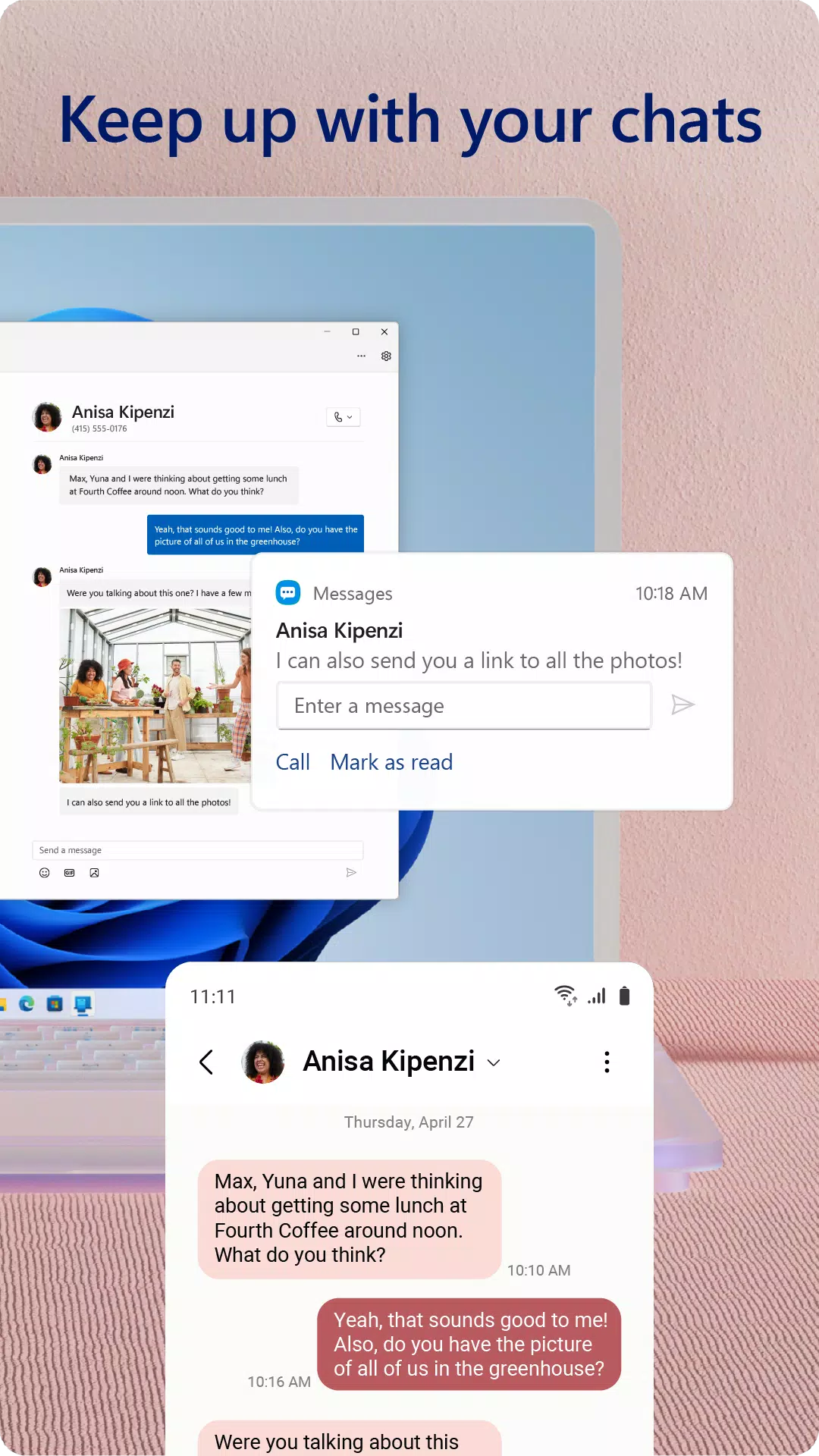
• Read and reply to text messages from your PC
• Drag files between your PC and phone**
• Copy and paste content between your PC and phone**
• Instantly access the photos on your phone from your PC
• Use your PC's larger screen, keyboard, mouse, or touchscreen to interact with your phone directly from your desktop.
Integrated with select** Microsoft Duo, Samsung, and HONOR phones for an enhanced experience:
The Link to Windows app is built-in, so no extra downloads from the Play Store are required.
Link to Windows is easy to find in the Quick Settings panel (swipe down from the top of your screen to access it).
Enjoy exclusive features like cross-device copy and paste, Phone Screen, file drag-and-drop, and Apps.
Let us know what features you'd like to see next by selecting “Send feedback” in the Phone Link settings.
*Calling requires a Windows 10 PC with Bluetooth capability.
**Drag and drop, Phone Screen, and Apps require a compatible Microsoft Duo, Samsung, or HONOR device (full list and capability details: aka.ms/phonelinkdevices). The multiple apps experience requires a Windows 10 PC with the May 2020 Update or newer and at least 8GB of RAM, and your Android device must run Android 11.0 or later.
The Link to Windows accessibility service supports those using a screen reader on the PC. When enabled, it allows you to control all your phone’s apps from your PC using Android keyboard navigation while receiving spoken feedback through your PC speakers. No personal or sensitive data is collected via the Accessibility Service.
By installing this app, you agree to the Microsoft Terms of Use (https://go.microsoft.com/fwlink/?LinkID=246338) and Privacy Statement (https://go.microsoft.com/fwlink/?LinkID=248686).
What's New in the Latest Version 1.24101.61.0
Last updated on Oct 25, 2024
Minor bug fixes and improvements. Install or update to the newest version to try it out!