
Control your device using switches or the front-facing camera.
Operate your phone or tablet with switches or the front camera. Use switches to select items, scroll, enter text, and perform other actions.
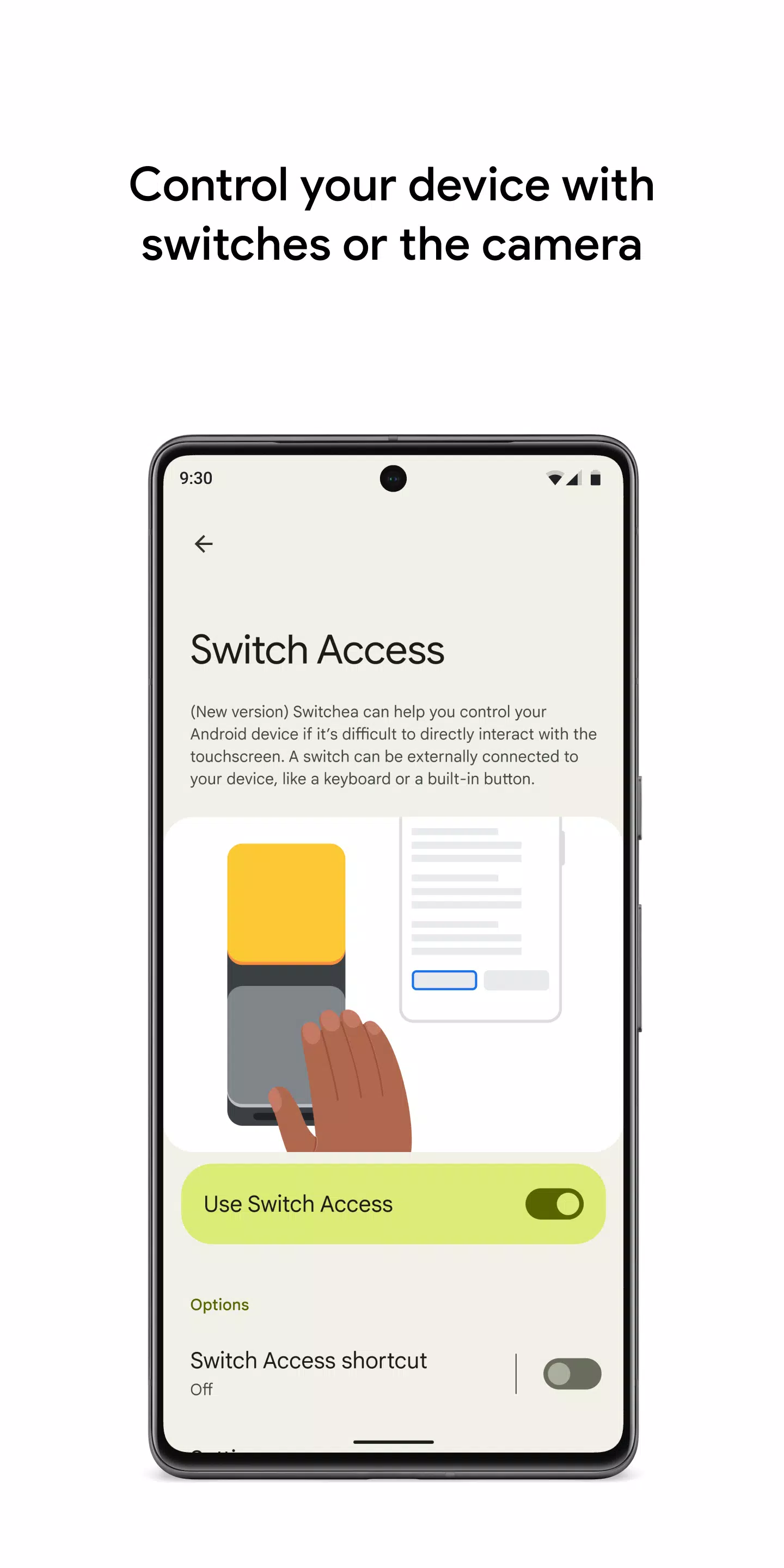
Switch Access lets you interact with your Android device using one or more switches instead of the touchscreen. It's ideal if you cannot directly interact with your device.
To get started:
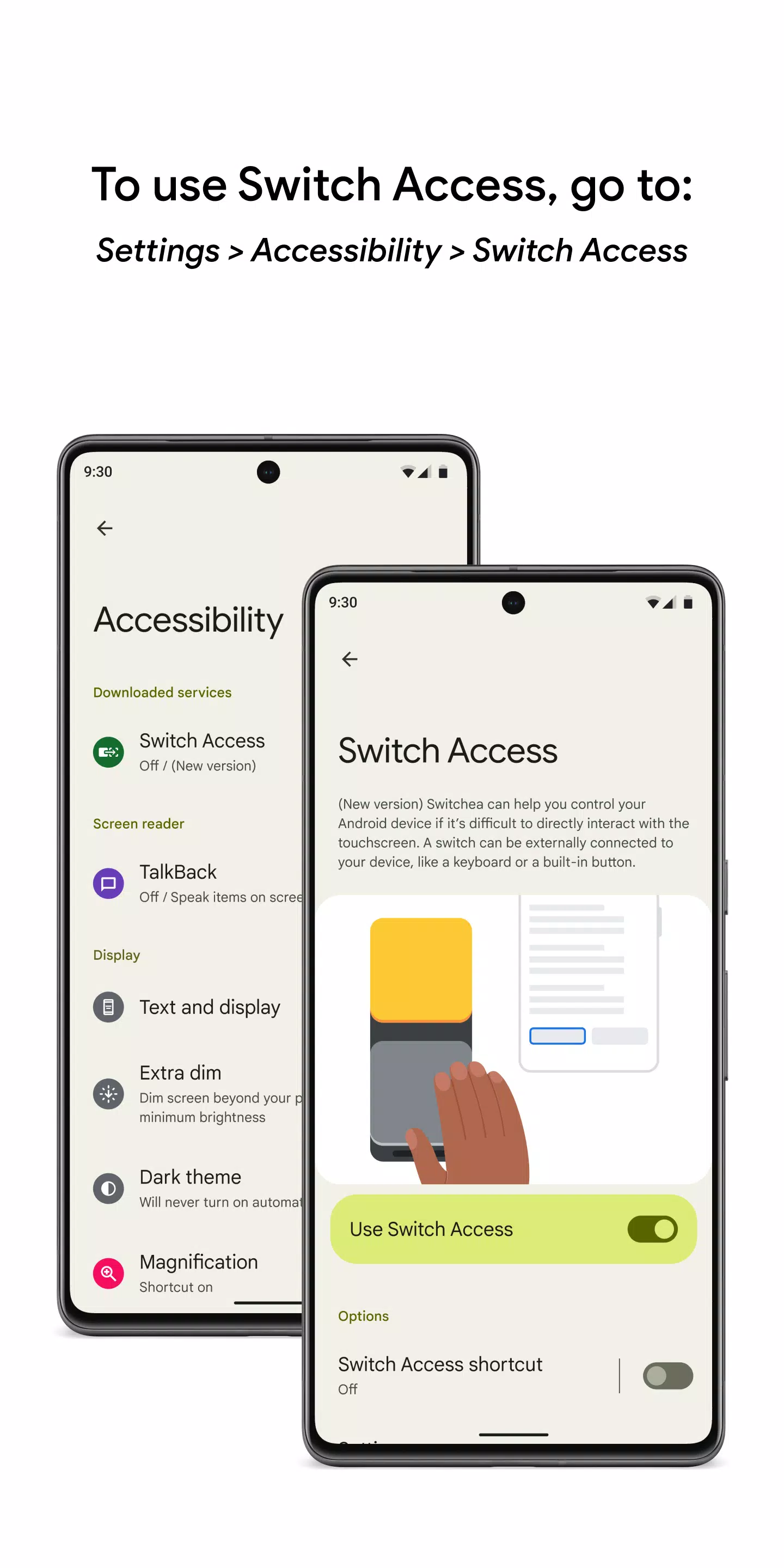
1. Open the Settings app on your device.
2. Tap Accessibility > Switch Access.
Set up a switch
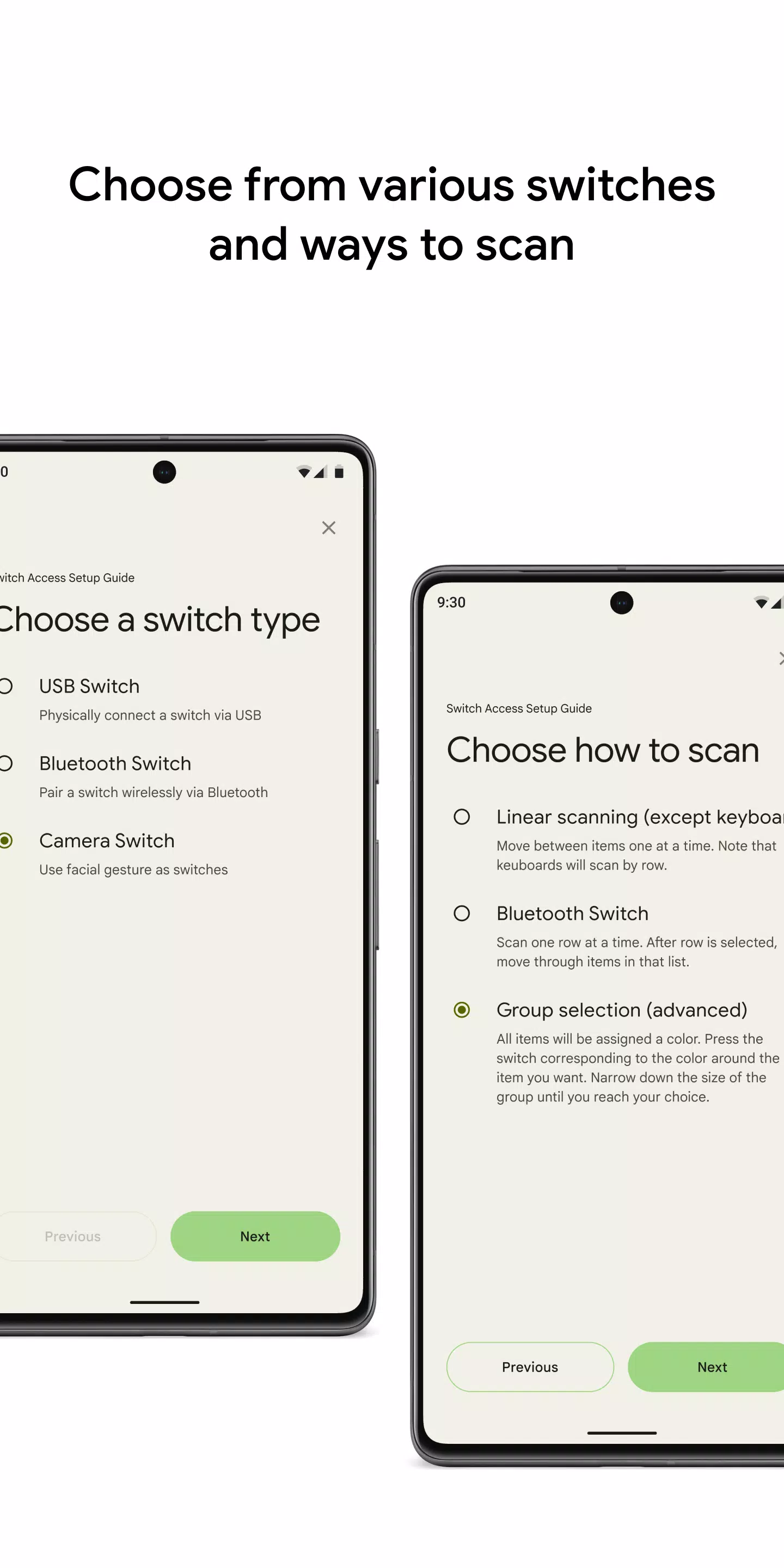
Switch Access scans your screen and highlights each item in sequence until you make a selection. You can choose from several types of switches:
Physical switches
• USB or Bluetooth switches, such as buttons or keyboards
• On-device switches, like the volume buttons
Camera switches
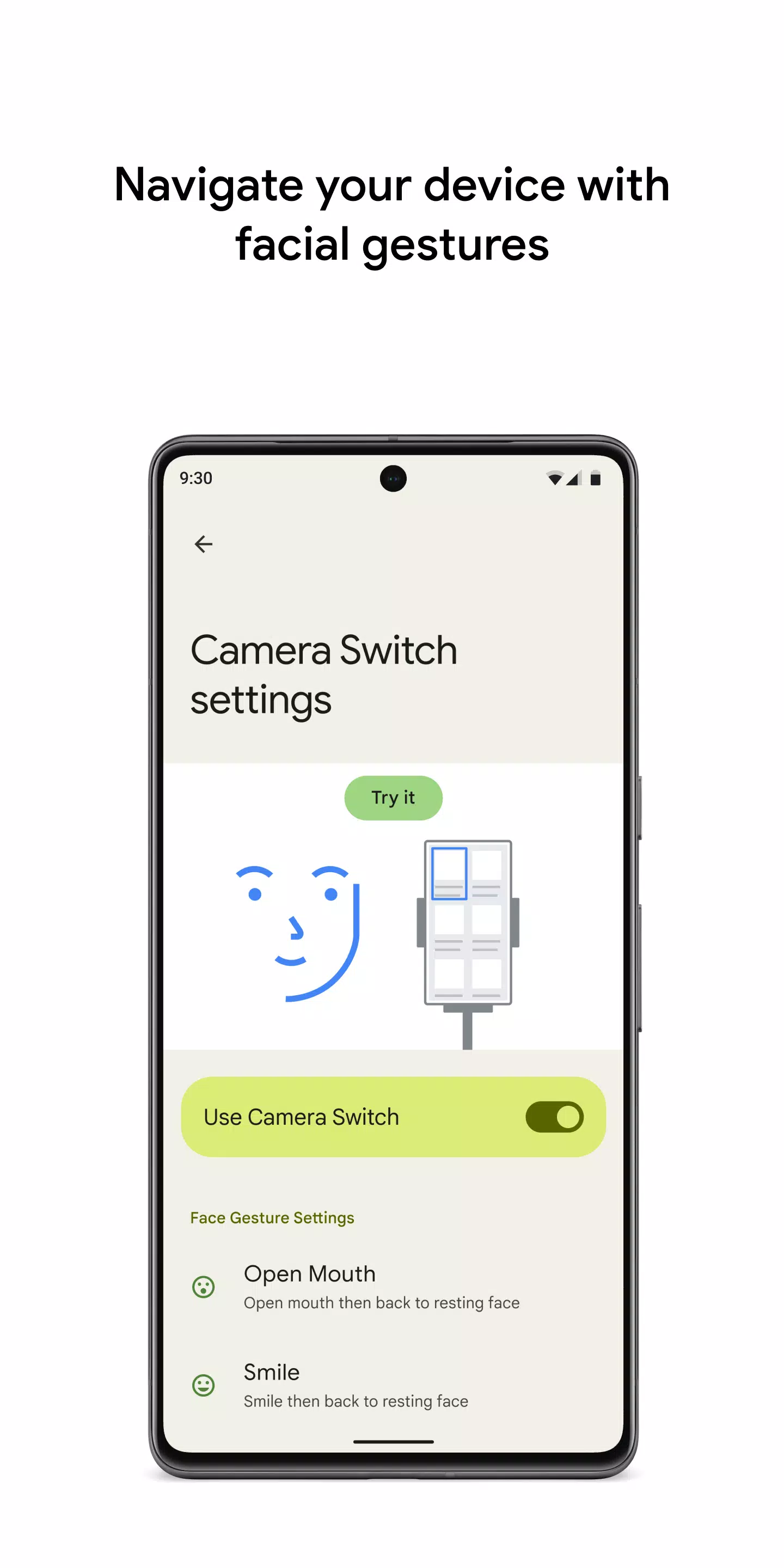
• Open your mouth, smile, or raise your eyebrows
• Look left, right, or up
Scan your device
After setting up a switch, you can scan and interact with on-screen elements.
• Linear scanning: Move between items one at a time.
• Row-column scanning: Scan one row at a time. After selecting a row, move through the items within it.
• Point scanning: Use moving lines to pick a specific horizontal and vertical point, then press "Select".
• Group selection: Assign switches to different color groups. All on-screen items are assigned a color. Press the switch that matches the color surrounding your desired item. Keep narrowing the group until you reach your choice.
Use the menus
When an item is selected, a menu appears with available actions like select, scroll, copy, paste, and more.
A menu at the top of the screen helps you navigate your device. For example, you can open notifications, go to the home screen, adjust volume, and perform other system actions.
Navigate with Camera Switches
Use Camera Switches to control your phone with facial gestures. Browse or select apps using your phone's front camera.
You can also customize the sensitivity and timing of each gesture to suit your preferences.
Record shortcuts
You can record touch gestures—like pinching, zooming, scrolling, swiping, or double-tapping—and assign them to a switch or a menu. This allows you to start frequent or complex actions with one switch. For instance, record a gesture that swipes left twice to turn two pages in an ebook.
Permissions Notice
• Accessibility Service: As an accessibility service, this app can observe your actions, retrieve window content, and observe text you type.